
A new user to ManageMyMatch needs to register, complete a few details about themselves (and any family members) and join up with a club. This article takes us through the screens that appear at each stage.
ManageMyMatch's landing page for any non-user appears like this
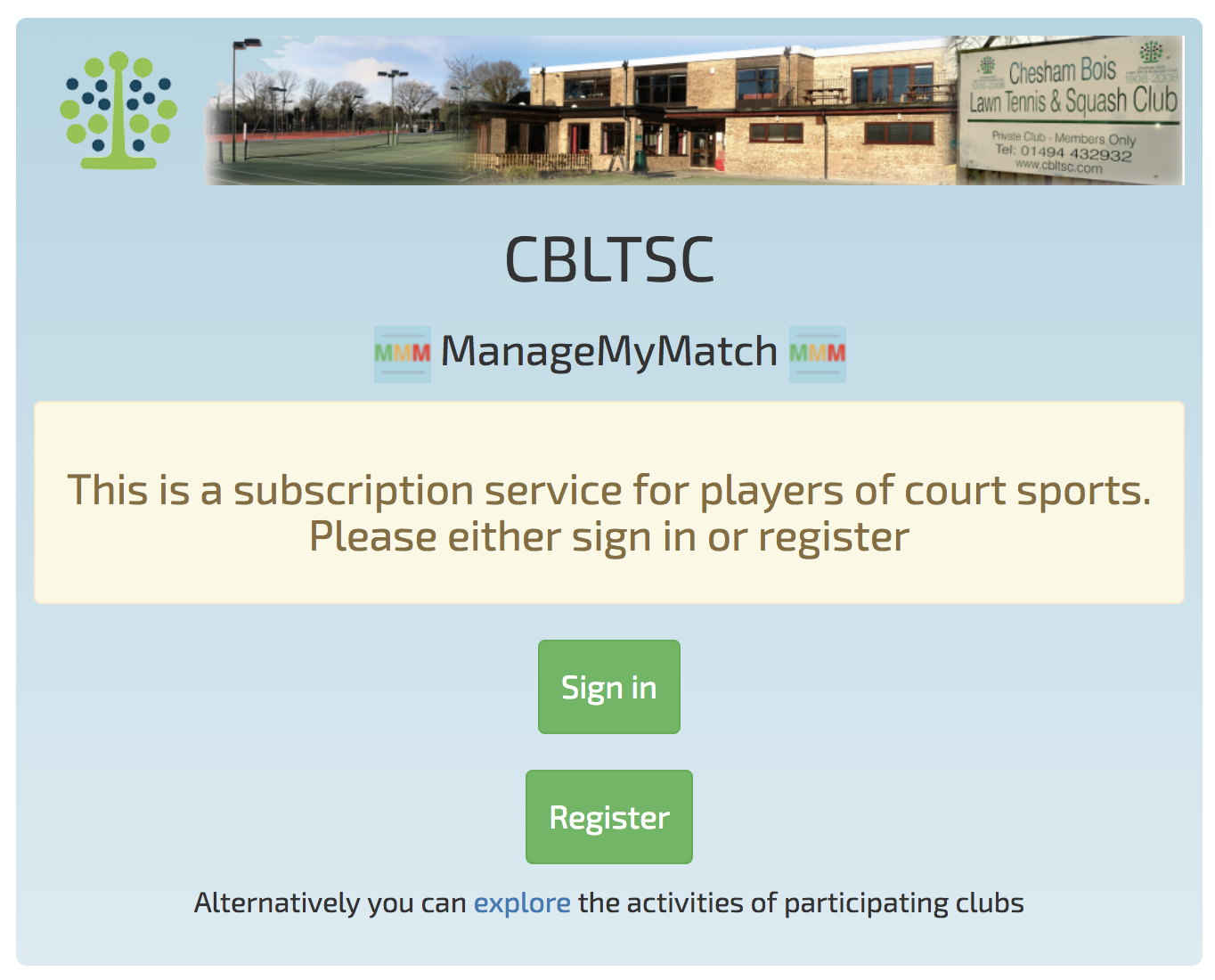
A new user must then click the Register button that gives the initial registration screen:
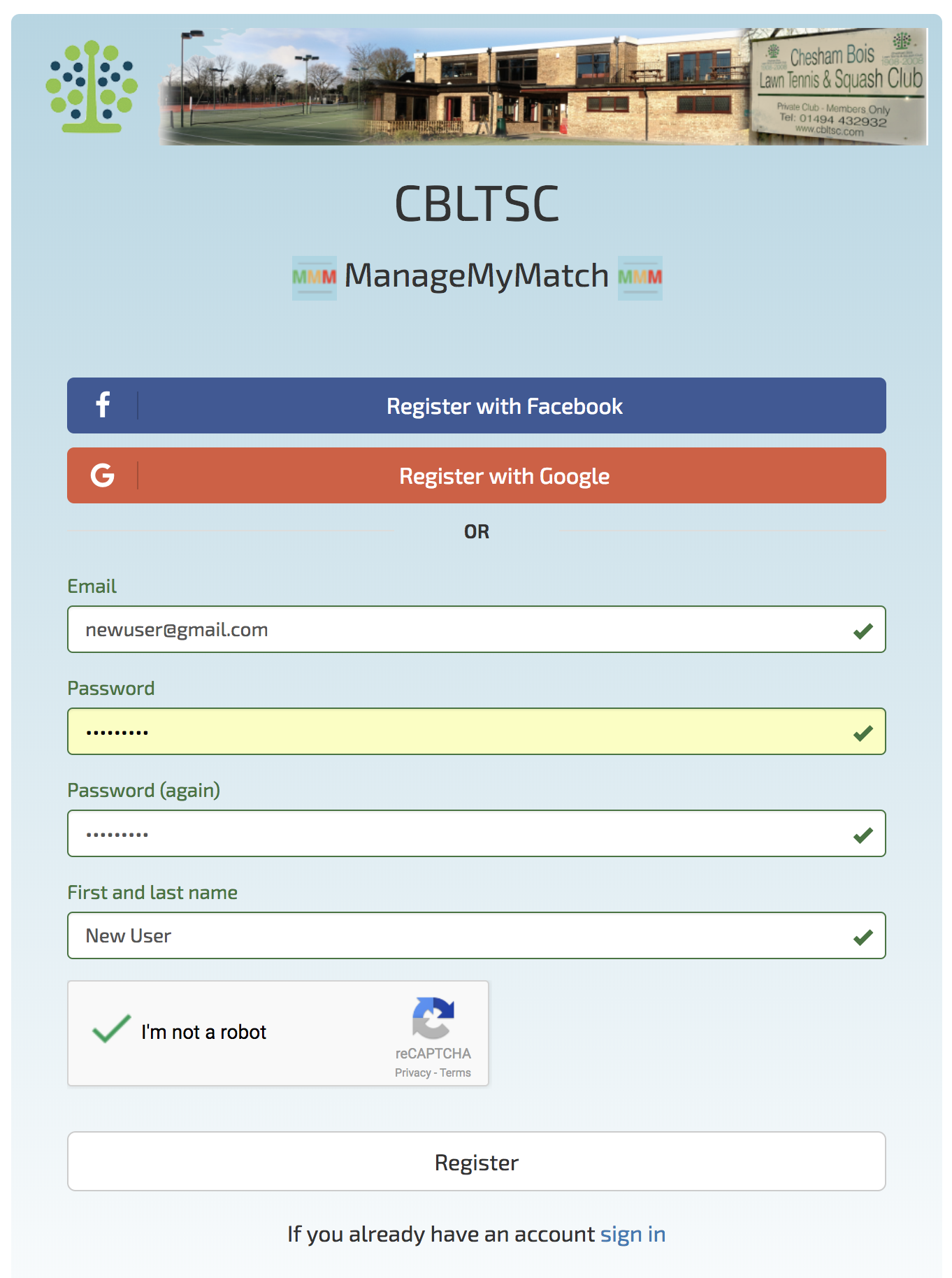
An email, password, name and human-check details must be completed at which point the register button is pressed that will result in the following screen:
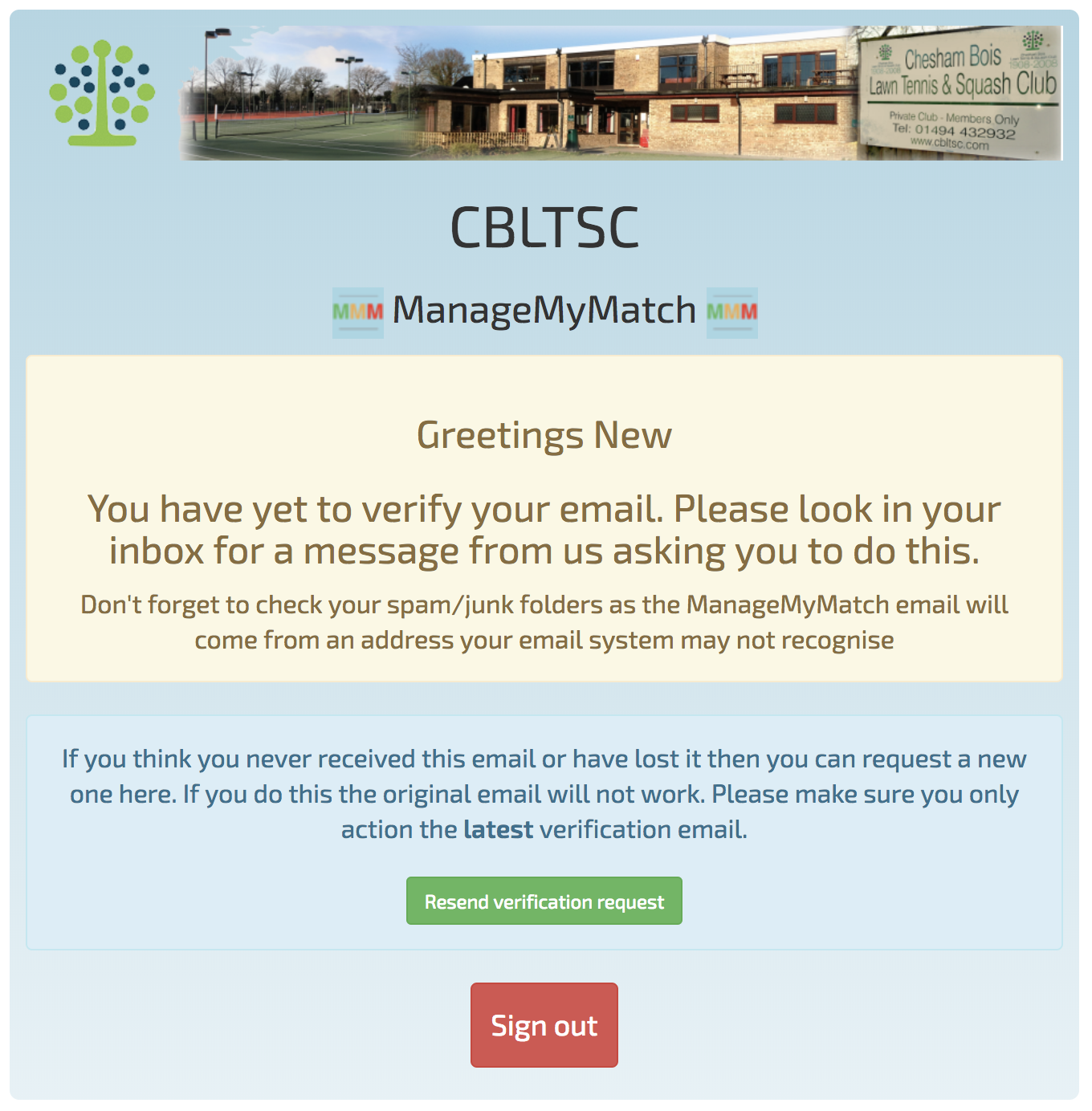
The user will have been sent an email that needs to be confirmed. As per these on-screen instructions, the user should wait for this email and double check for it in the spam/junk folder. The email looks like this:
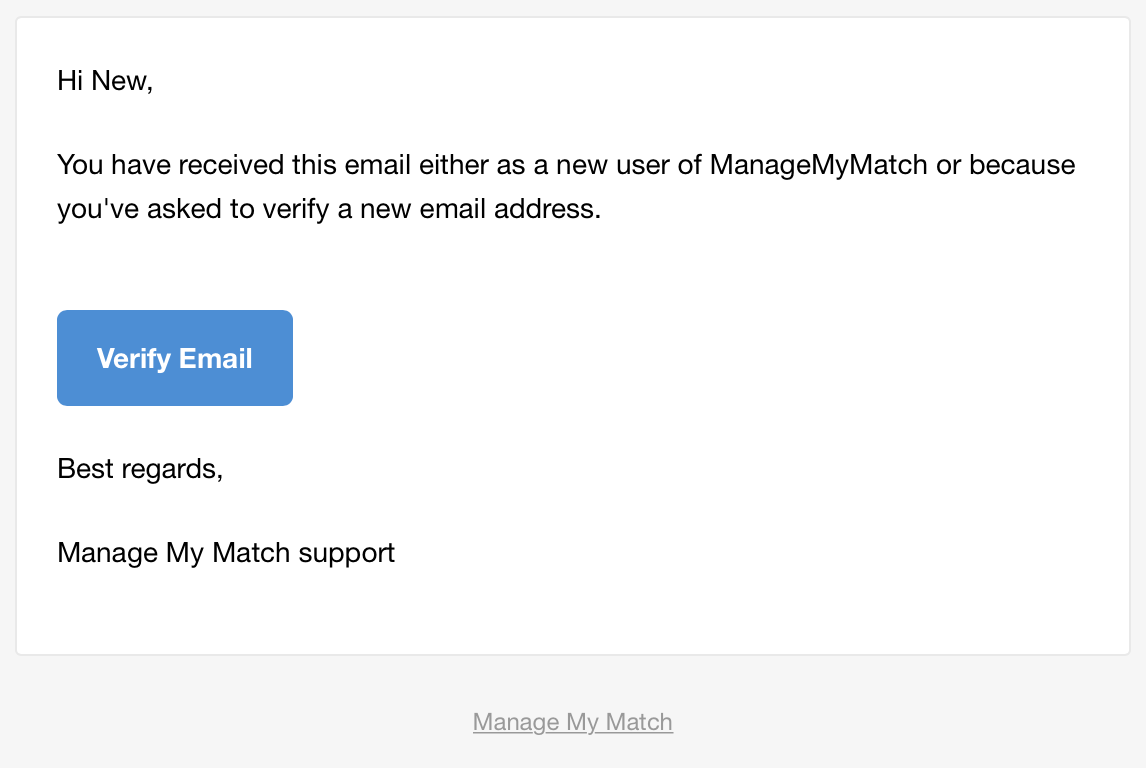
The user should click the Verify Email button that will momentarily show the following screen in their browser:
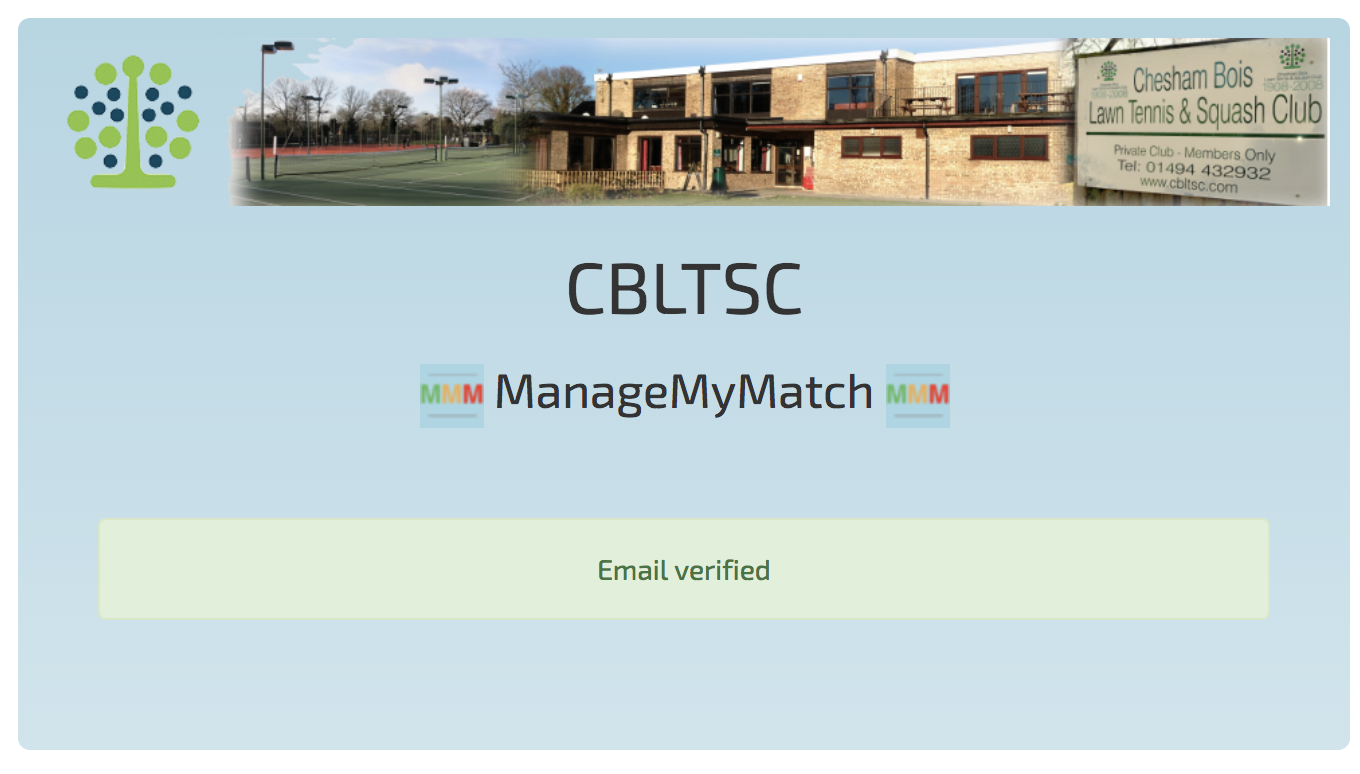
This screen will only show for about 5 seconds and will be replaced with the following:
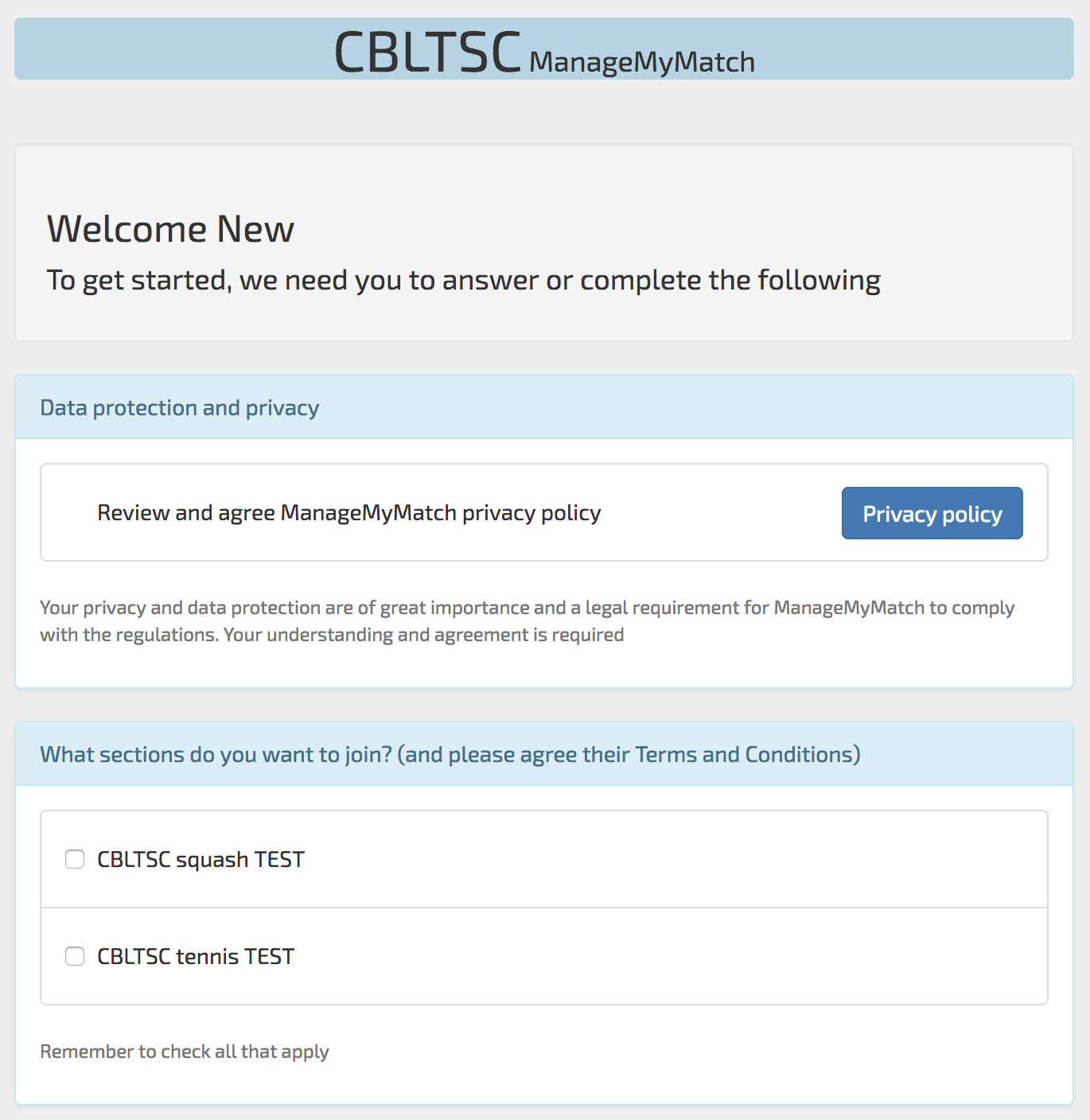
This is the first part of the process to sign up with ManageMyMatch and a club, including the completion of further details. The user must agree to ManageMyMatch's Privacy Policy and indicate the club section (if applicable) that they intend to join after which the screen expands to show further inputs as follows. A club may have their own Terms and Conditions in which case a button will appear for the club (section) in question requiring the user to click it, review them and acknowledge them.
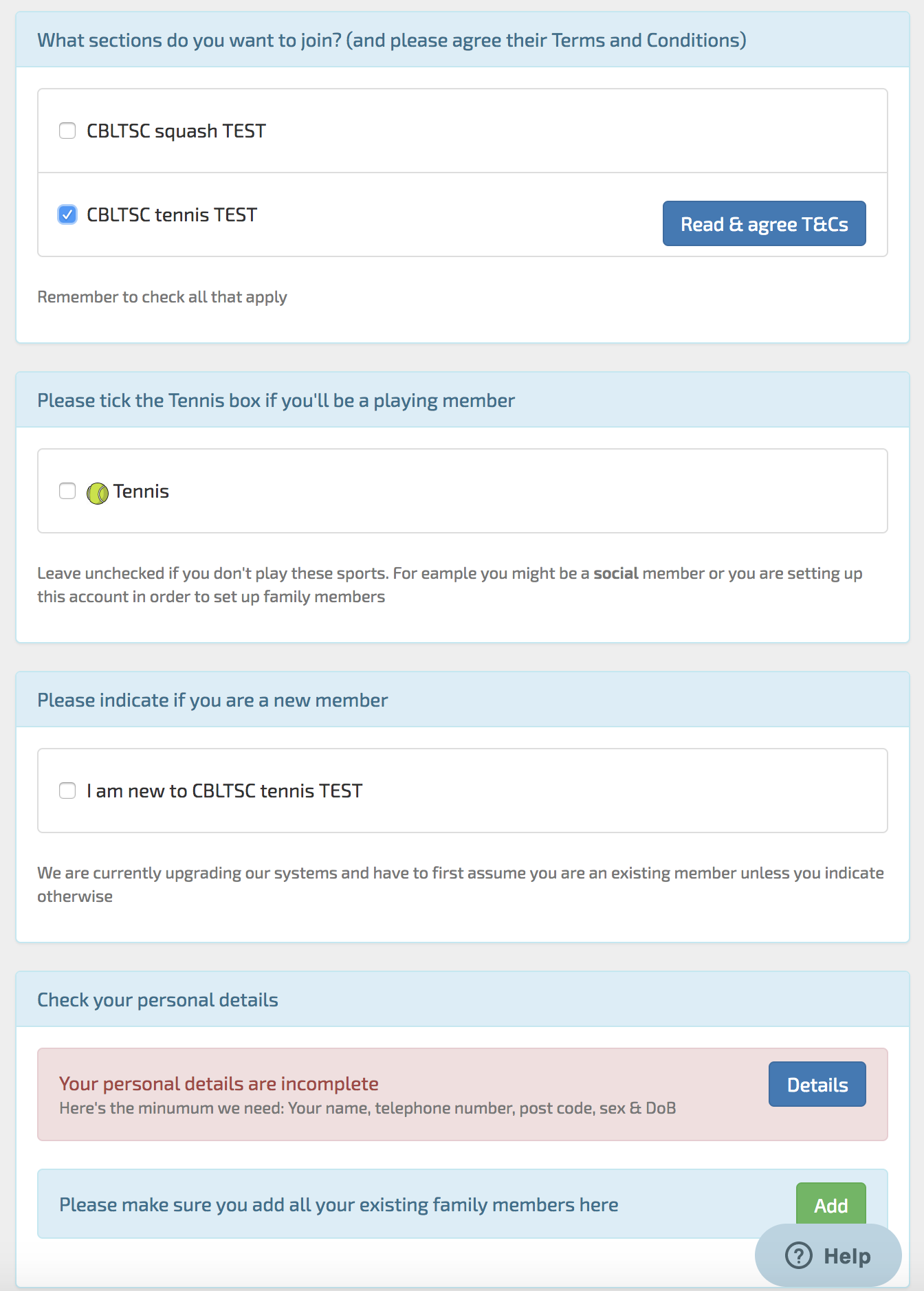
The user needs to confirm which, if any, sports they play themselves. If the club is in transition from a legacy system they should also indicate if they are a genuine new member, otherwise ManageMyMatch assumes they are an existing member transitioning onto ManageMyMatch. Finally the member must complete their personal details bu clicking the Details button that yields a popup screen that looks like:
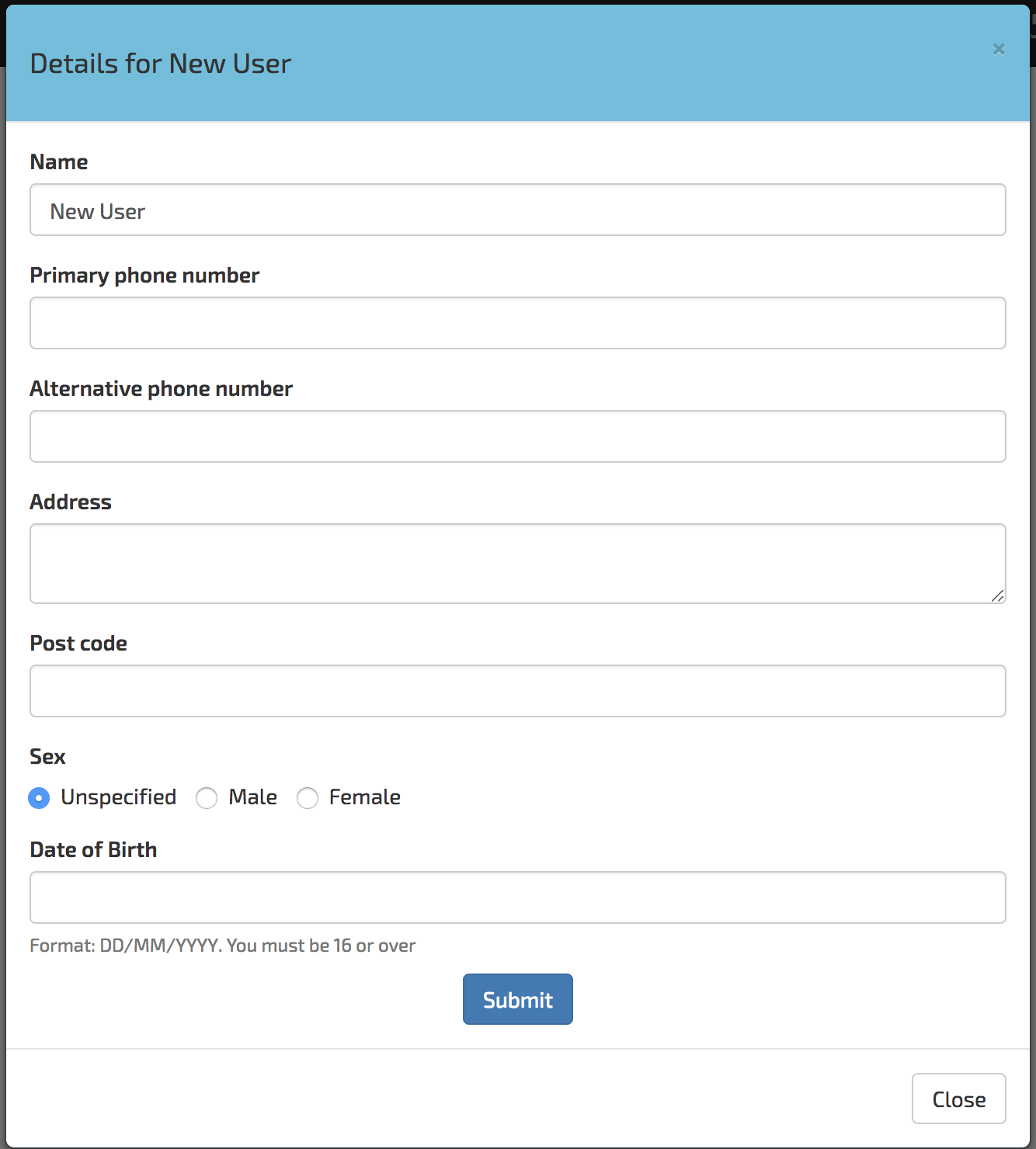
The user should complete all details requested and hit Submit. If the user has other family members then these should be added giving details for each. Once member details and any family member details are complete ManageMyMatch then invites the user to continue to the final stage which involves purchasing a subscription:
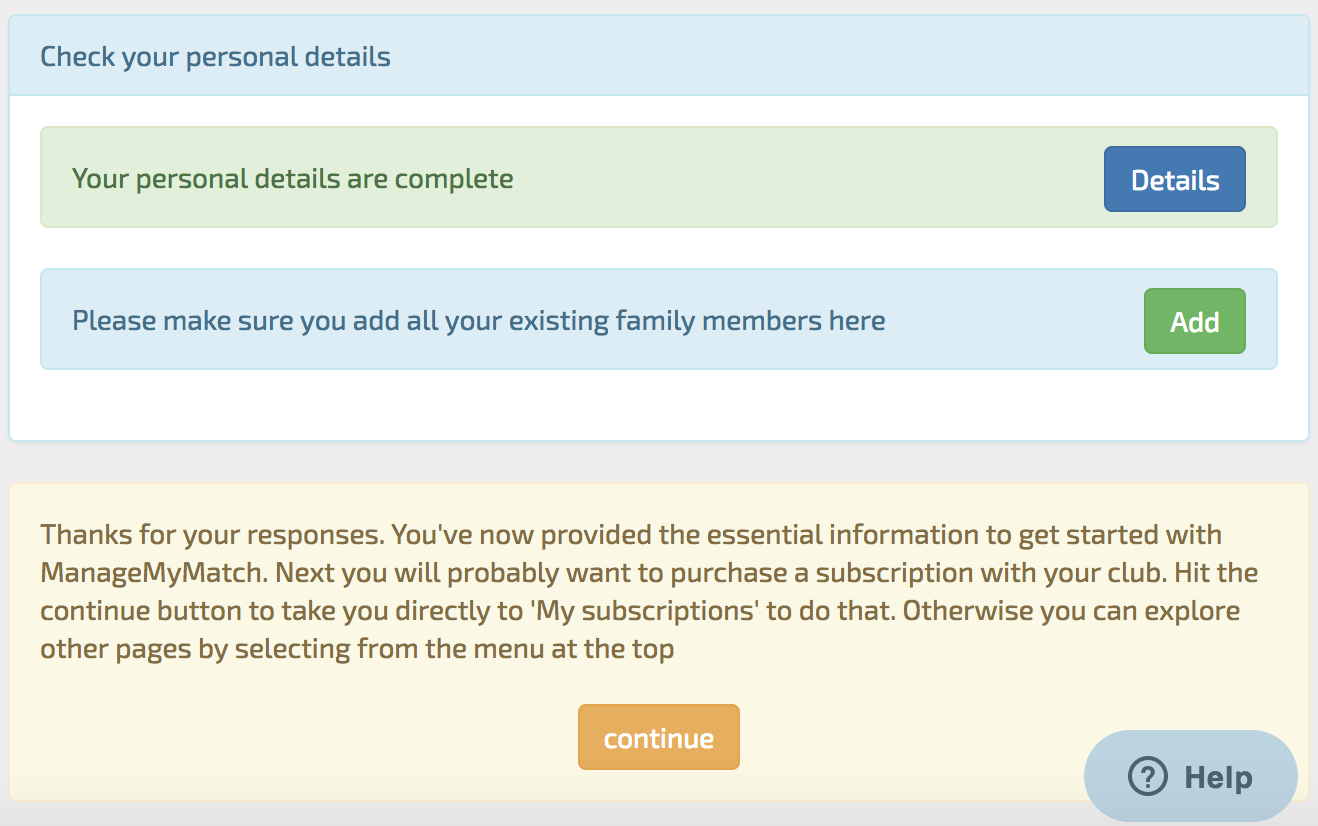
The user should hit Continue. At this point the registration process is complete and the member may choose to purchase a subscription now or later. If the member is transitioning from a legacy system it may be that a subscription purchase at this point is unnecessary.
Comments
0 comments
Please sign in to leave a comment.